Help page
Parts Catalog
A 3D spare parts program developed by Andreas Seidl-Mayer working at Ninefeb Technical Documentation
Quick info
Find your information about parts, assemblies and machines
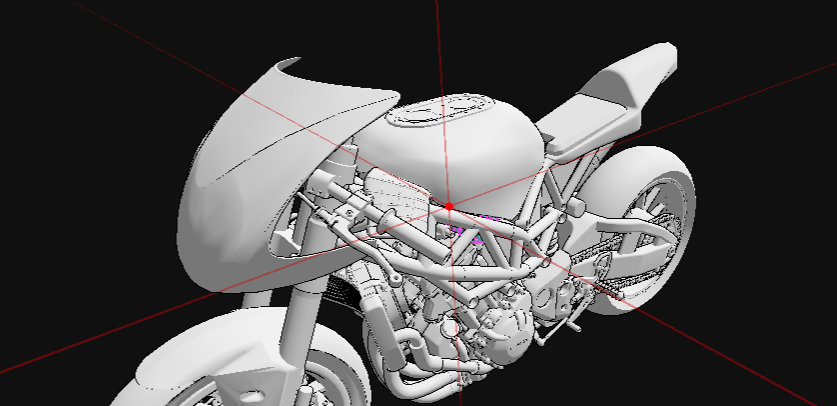
One step away
With a single STEP file, we can create a 3D parts catalog that represents all components and provides the information needed for technical documentation, spare-parts supply, and more.
Interested?
Send us your step file and lets find out if it fits your need-> andreas.seidl-mayer@ninefeb.com
Interactions
Select, Grab, Orbit, Pan and zoom with your mouse in 3D
Mouse and Keyboard Interactions
Interaction in 3D Viewer
Select
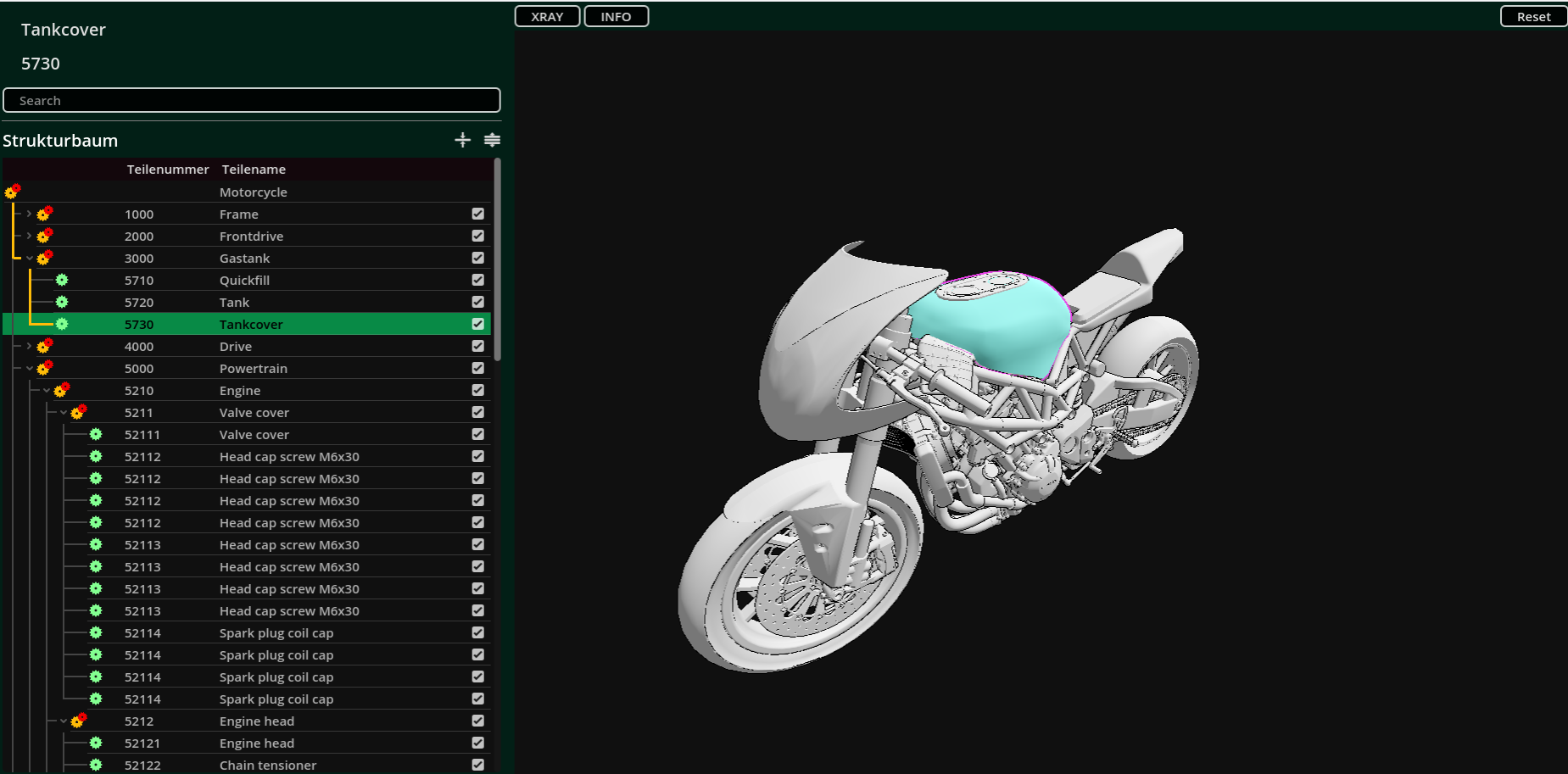
Bidirectional selection of parts with LMB in 3D or in Treeview
Grab
When a part is selected you can grab it and pull it away from its location. It will be deactivated when you release the button.
Orbit
Lets the camera rotate around the object
Panning
Shifts the cameras location to your need
Zooming
Change the distance to your objects
Focus
Changes the focus point of your camera
Interaction in Treeview
- Click
LMBto Select - Double Click
LMBopen/close sub items - Click
RMBopen Context menu
Buttons
XRAY Button
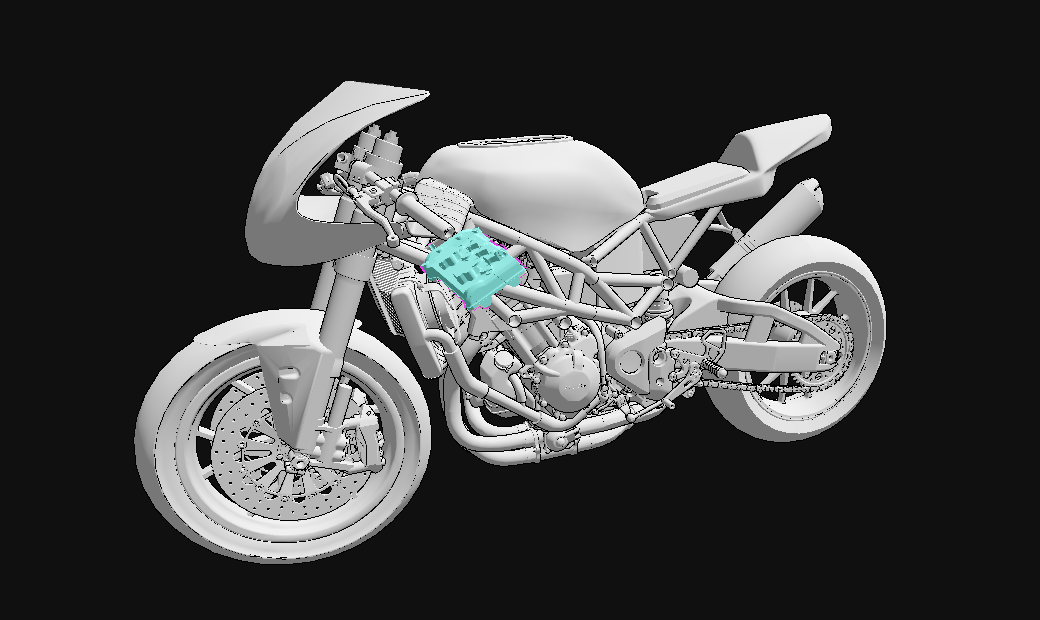
When a part is selected it shows it through all other parts
Info Button
Opens 04 Partinfo window
Reset Button
Reset everything and start fresh
Help Button
Opens this page
Left panel
Fast access info panel
Easy copy partnumber and partnames when selected

Search
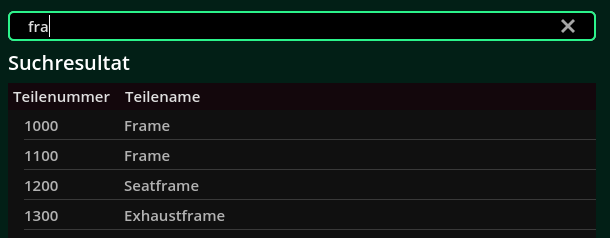
Find parts with text search
Treeview
Lists all parts in hierarchy with information like, names, partnumbers ect.
Control
- Left click
LMBselects parts or assemblies - Right click opens Context menu
- Buttons on top right to
expandorcollapsethe tree
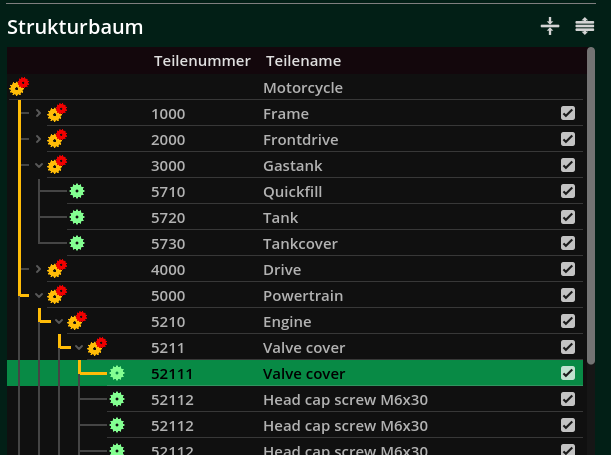
Context menu

Functions
- Select Parent
- Isolate Part
- Show All
Partinfo window
Collect parts
Make list of parts, change quantity and export as csv file
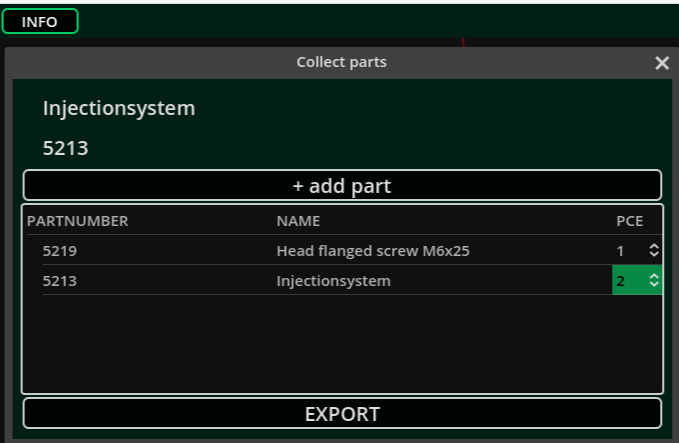
Export list
The button to export the collected parts list.
- When running in HTML5, the data is constructed into an email due restrictions to write to the user file system.
- When running the windows application, it can be saved as csv or json file to your user file system
Partlocator
A animated dot and 3D cross to help find the location of parts.
Control
- It always is shown when you select a part in Treeview
- Click
ESCto cancel it